Як завантажити прайс постачальника з Excel
Коли фід постачальника створено, у нього можна завантажити прайс. Ця інструкція показує, як завантажити Excel-файл із комп’ютера і зіставити колонки.
1. Оберіть спосіб завантаження
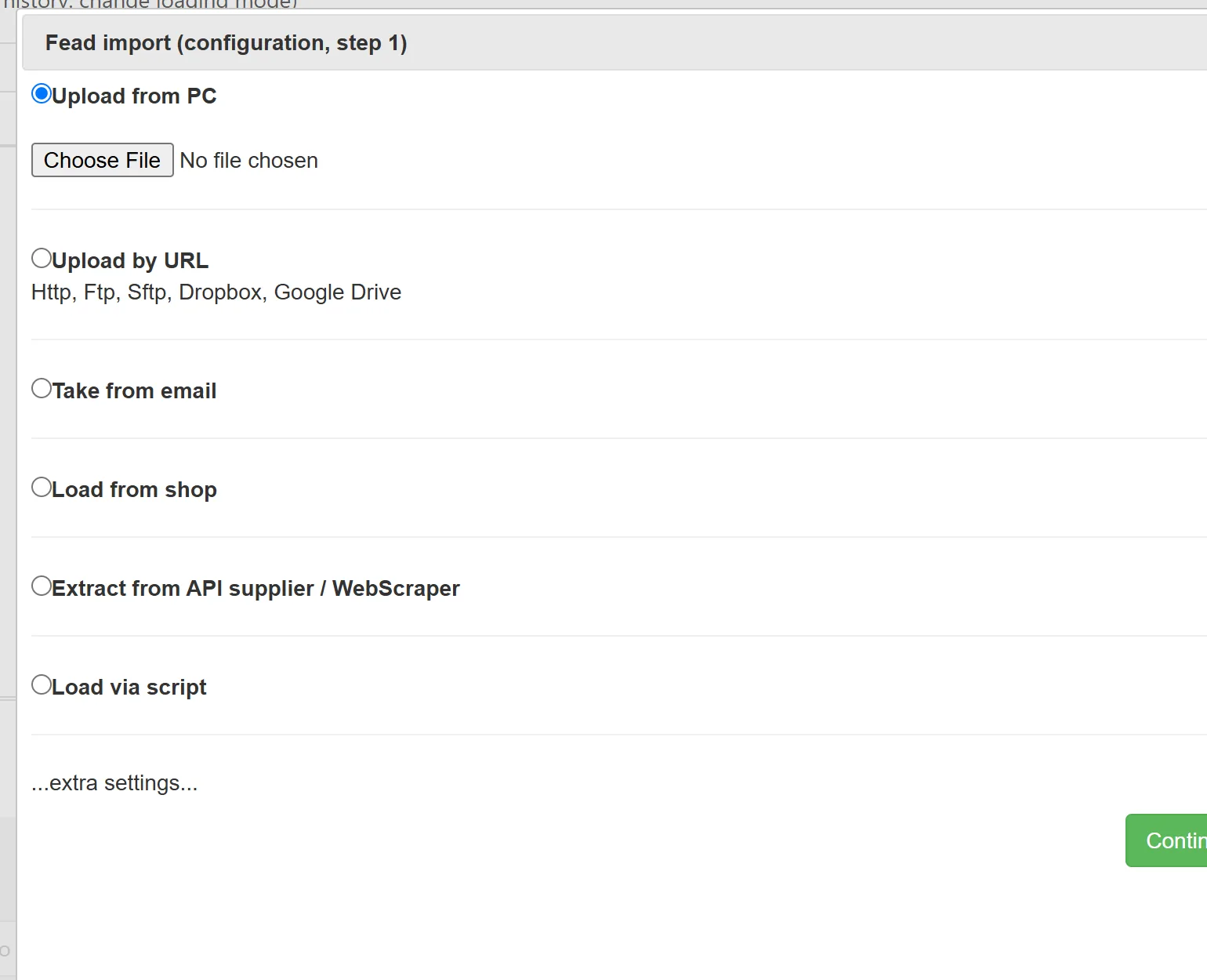
- Відкрийте фід постачальника і перейдіть у розділ Upload його меню.
- Оберіть тип завантаження, наприклад Upload from PC (з комп’ютера).
- Виберіть Excel-файл на комп’ютері.
- Натисніть Continue.
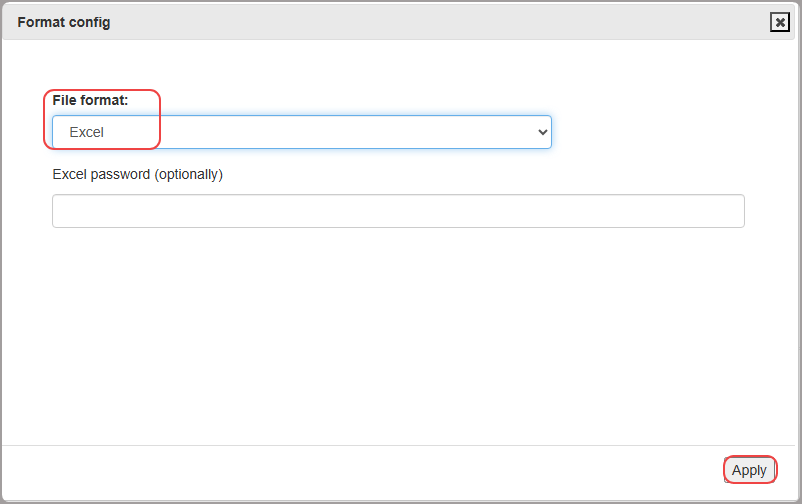
2. Підтвердьте формат файлу
YfiFX визначає формат файлу автоматично. Якщо його визначено правильно, натисніть Next. Якщо ні, задайте правильний формат вручну, а потім натисніть Next.
3. Зіставте колонки
Відкриється вікно Field Mapping. Колонки зіставляються автоматично (1). Якщо назву колонки не розпізнано, її буде пропущено: для незіставлених чи обов’язкових колонок оберіть потрібне поле зі списку вручну (2).
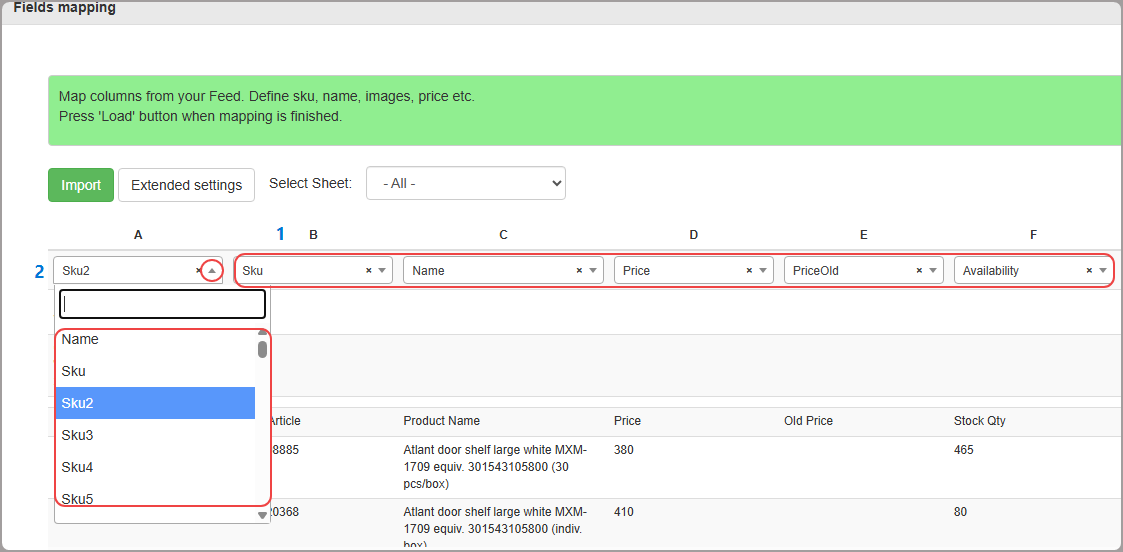
Можна зіставити артикул, код виробника, бренд, ціну, залишок (наявність), валюту та інші параметри. Особливої уваги потребують два поля:
- Price: ціна, за якою ви купуєте товар у постачальника.
- RRP: рекомендована роздрібна ціна постачальника (РРЦ, MRP, роздрібна ціна тощо), тобто ціна, нижче якої продавати не можна.
4. Імпорт
Коли колонки зіставлено, натисніть Import і дочекайтеся завантаження даних. Тривалість залежить від розміру файлу і швидкості інтернету.
Зіставлення зберігається у фіді, тож наступний прайс цього постачальника читатиметься так само.
Схожі статті
Налаштуйте один раз, а YfiFX зробить решту
14 днів безкоштовно. Зареєструйтесь і завантажте перший прайс уже сьогодні.