How to upload a supplier price list from Excel
Once a supplier feed is created, you can load the supplier's price list into it. This guide shows how to upload an Excel file from your computer and map its columns.
1. Choose the upload method
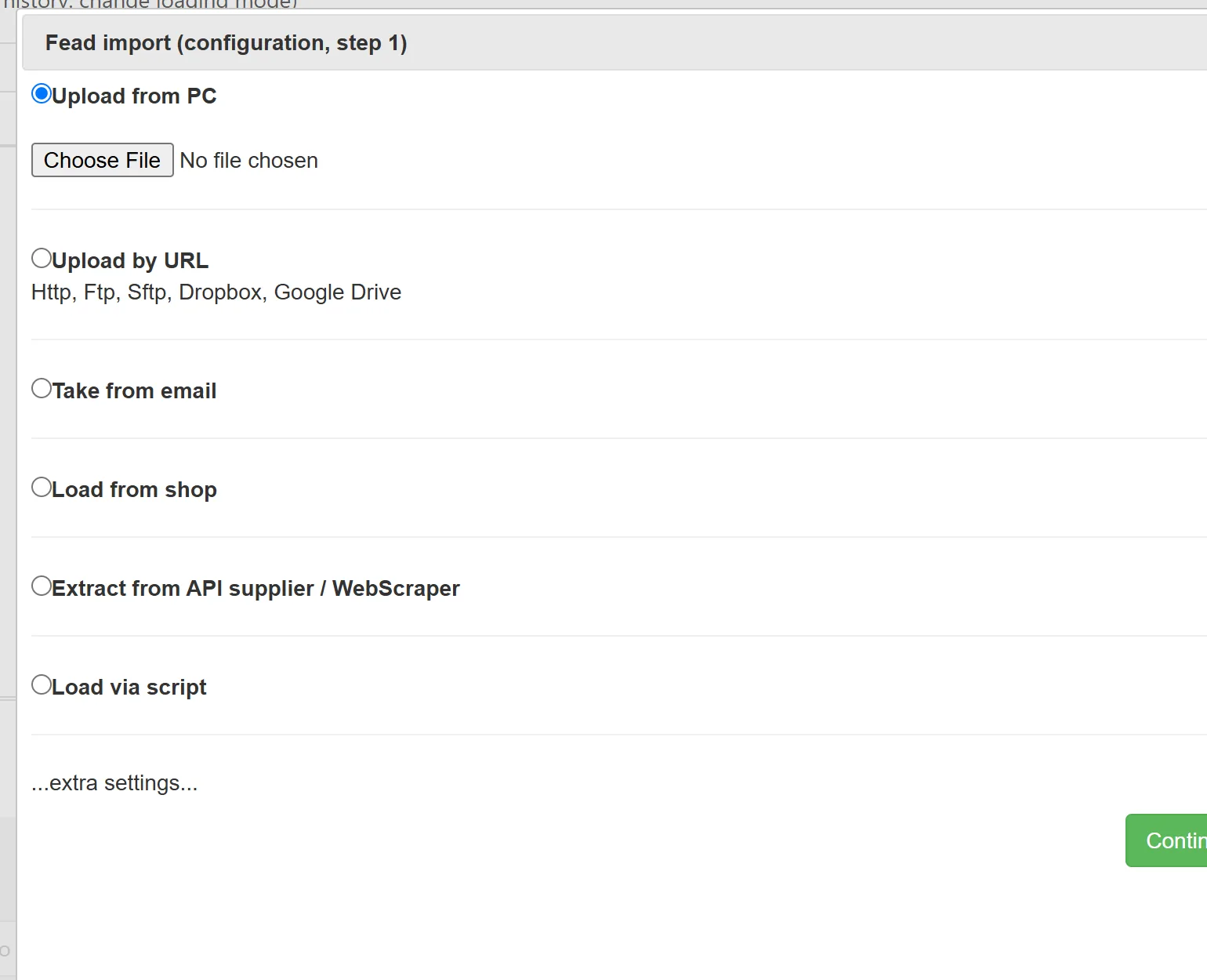
- Open the supplier feed and go to the Upload section of its menu.
- Select the upload type, for example Upload from PC.
- Select the Excel file on your computer.
- Click Continue.
2. Confirm the file format
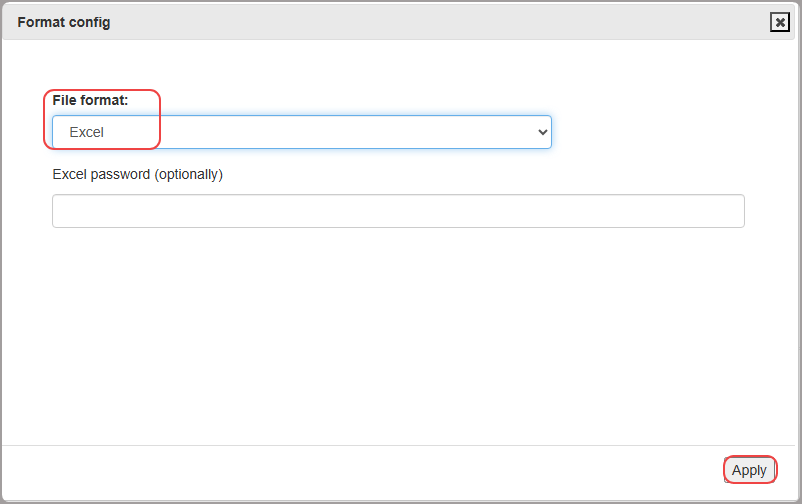
YfiFX detects the file format automatically. If it is detected correctly, click Next. If not, set the correct format manually and then click Next.
3. Map the columns
The Field Mapping window opens. Columns are mapped automatically (1). If a column name is not recognised, it is skipped: for any unmapped or required column, choose the right field from the drop-down list manually (2).
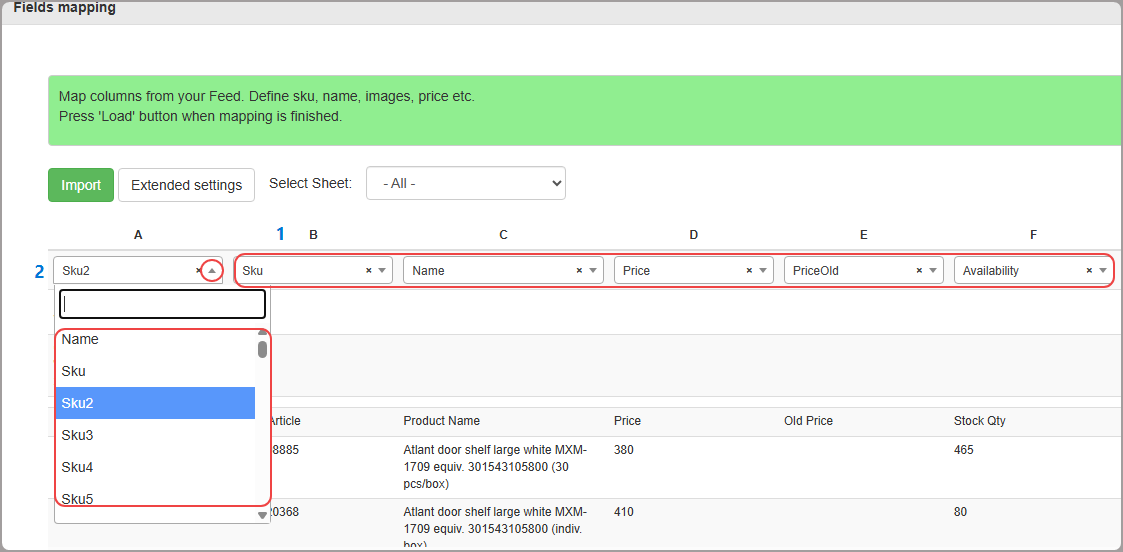
You can map fields such as SKU, manufacturer part number, brand, price, stock (availability), currency and other parameters. Two fields need special attention:
- Price: the price at which you buy the product from the supplier.
- RRP: the supplier's recommended retail price (it may be called RRP, MRP, retail price and so on), that is, the price you should not sell below.
4. Import
When the columns are mapped, click Import and wait until the data is loaded. The time depends on the size of the file and the speed of your internet connection.
The mapping is saved with the feed, so the next price list from the same supplier will be read the same way.
Related Articles
Set it up once. YfiFX does the rest
14 Days Free Trial. Sign up and import your first price list today.