Automated product data import: how it works and where to start
Most stores begin by updating products by hand: open the supplier's file, find the changed prices, copy them into the admin panel. It works until the second or third supplier, or until the catalog passes a few hundred items. After that, updates get skipped, prices drift away from the supplier's, and the store sells items that are no longer in stock.
Automated import replaces this routine with a repeatable process. Here is what it consists of and what to prepare.
The four steps of an automated import
1. Getting the data
The supplier's price list has to arrive without anyone downloading it. Typical options are a permanent link to a file, an e-mail with an attachment, an FTP folder, a shared Google Drive or Dropbox folder, or the supplier's API.
2. Reading the format
Every supplier structures data differently: one sends Excel with prices in column F, another sends XML with nested categories. The import needs a description of where each field is, so that "Price", "Preis" and "unit_cost" all end up in the same place.
3. Linking products
The same product can appear under different names and codes from different suppliers. Products are linked to your catalog by SKU, barcode or another field, or manually for the difficult cases. Links are created once and reused on every update.
4. Calculating and exporting
Supplier prices are converted to your currency, markups are applied, and the final prices and stock are sent to the store, marketplace or product feed.
What you gain in practice
The most visible change is in prices. When a supplier raises a price, yours follows on the next run, and the margin does not quietly disappear. Stock behaves the same way: items that run out at the supplier stop being sold in your store.
It also changes how you grow. A new supplier means one more source in the settings rather than another person doing data entry. And because the rules are applied the same way every time, there are fewer of the small errors that creep into manual work.
The same four steps in YfiFX
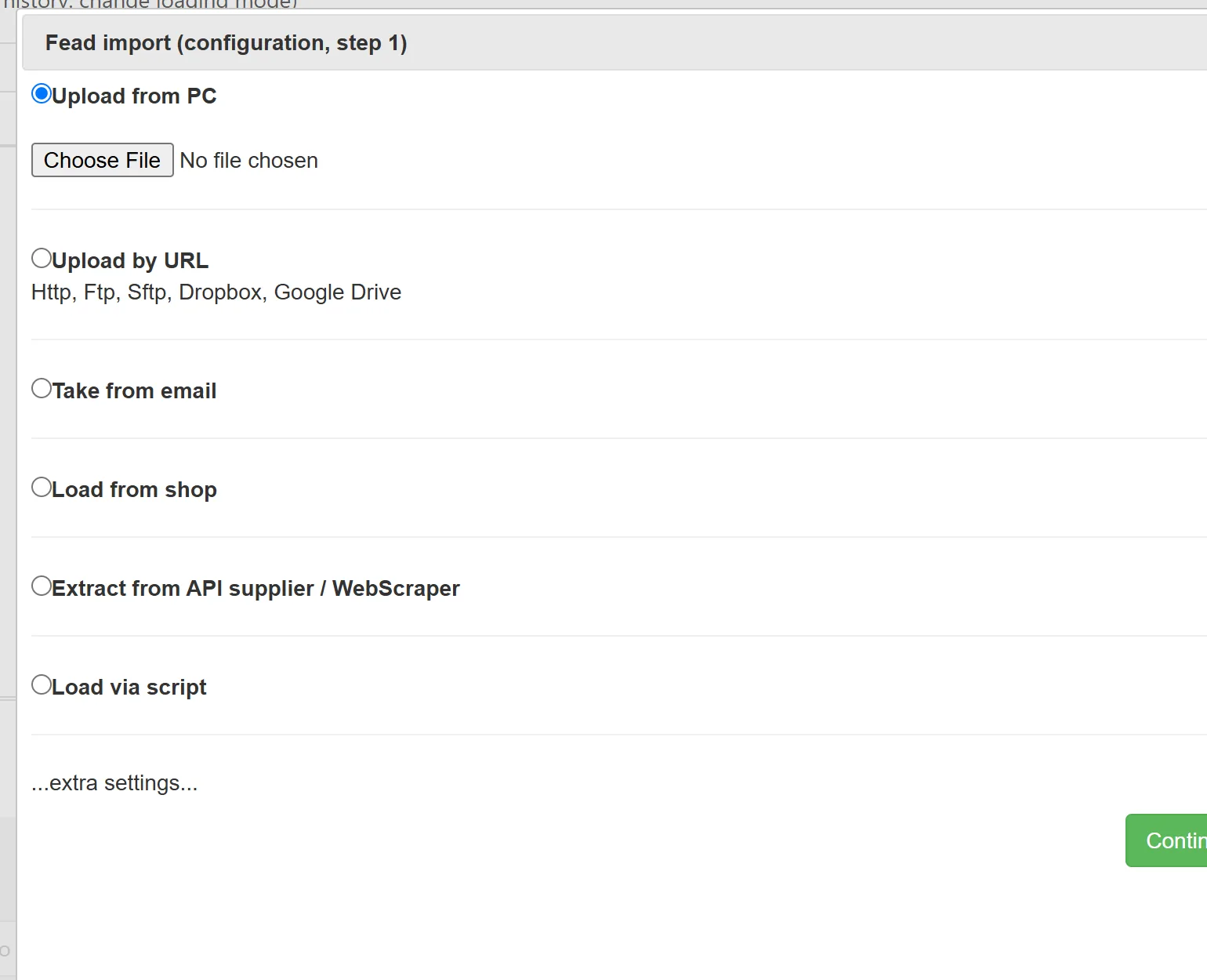
For each supplier you choose where the data comes from: a file uploaded once, a link the service downloads on schedule, e-mail, FTP, Google Drive or Dropbox, or an API.
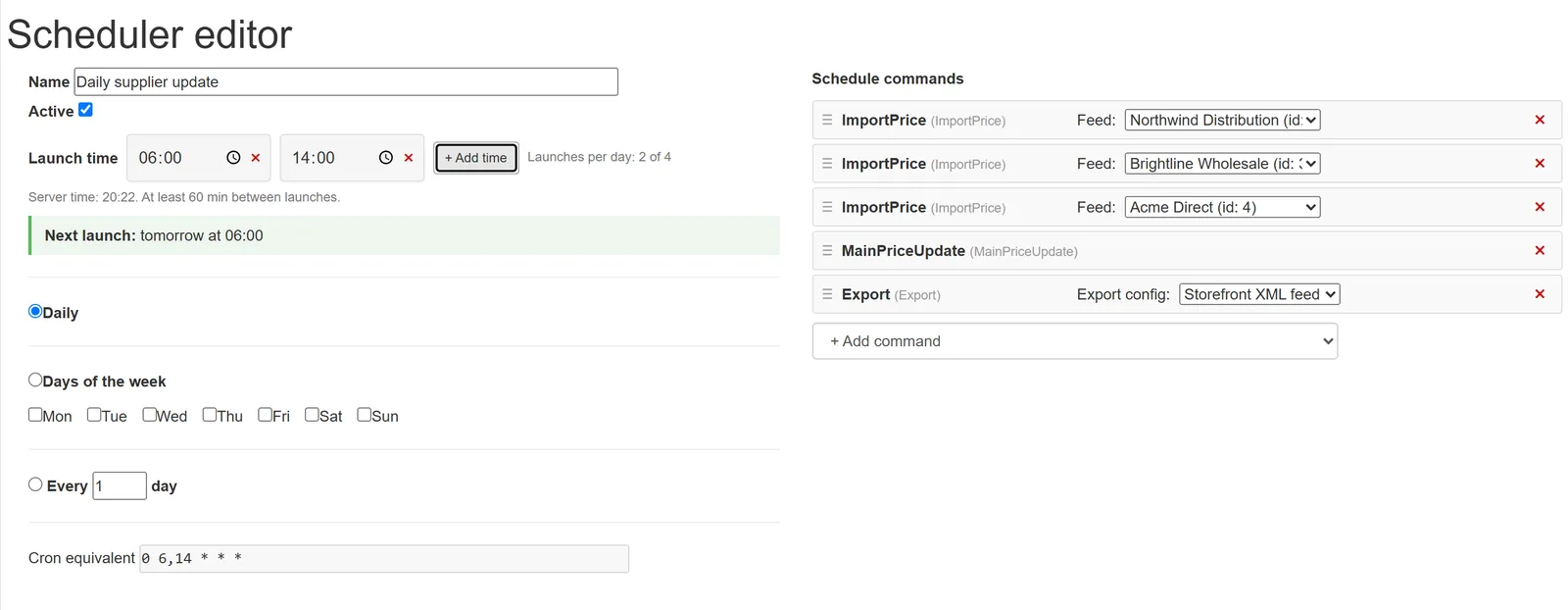
Format detection and mapping are done once per supplier, products are linked to the Main feed, and markups are calculated there. The last step is a schedule that runs everything in order: import from each supplier, recalculation of the Main feed, export.
Where to start
- Pick the supplier with the largest share of your sales.
- Set up their price list as a source and link the products.
- Define markup rules and compare the calculated prices with your current ones.
- Run the first export to a test file before sending it to the store.
- When the result looks right, turn on the schedule and add the next supplier.
YfiFX has a free plan for up to 1,000 products and 3 suppliers, which is enough to set up the first suppliers and see the process working on your own data.
Frequently Asked Questions
How often can product data be updated?
Updates run on a schedule you set. The number of automatic runs per day depends on your plan: one on the Free plan and up to four on Business.
Can supplier prices in another currency be converted?
Yes. You set the exchange rates, and supplier prices are converted to your store's currency before markups are applied.
Do I need to install anything?
No. YfiFX works in the browser, so there is nothing to install on your computer or server.
Set it up once. YfiFX does the rest
14 Days Free Trial. Sign up and import your first price list today.